Nothing to install, unless you want to.
Sydeslip is a web app. On the iPad you add it to the Home Screen and it behaves like any other app; on a computer you can simply open it in a browser. There is also a Windows installer if you want the desktop version. Either way you sign in with the MyFlightBook account you already have.
Before you start
You need a MyFlightBook account. Sydeslip does not have accounts of its own and does not hold your password — signing in hands you to MyFlightBook's own sign-in page, and Sydeslip only ever receives a token that lets it read and write your logbook on your behalf. You can revoke that at MyFlightBook at any time.
Back up your MyFlightBook logbook before you start, and keep that copy. Export it from MyFlightBook and put it somewhere safe. Sydeslip has been tested against MyFlightBook and it writes to your real logbook — adding, editing and importing flights there — so a copy you hold yourself is the only thing that does not depend on either of us. Use Sydeslip at your own risk. Keeping your own backup of anything digital is good practice whatever software you use, and having one is your responsibility.
On an iPad
- Open app.sydeslip.com in Safari on the iPad. It has to be Safari — iPadOS only offers Add to Home Screen there.
- Tap the Share button — the square with an arrow coming out of the top, in the toolbar.
- Scroll down and choose Add to Home Screen, then tap Add. Sydeslip's icon appears on the Home Screen with your other apps.
- Open it from the icon, not from Safari, and sign in with MyFlightBook. Opening it from the icon is what gives you the full screen and the offline pages.
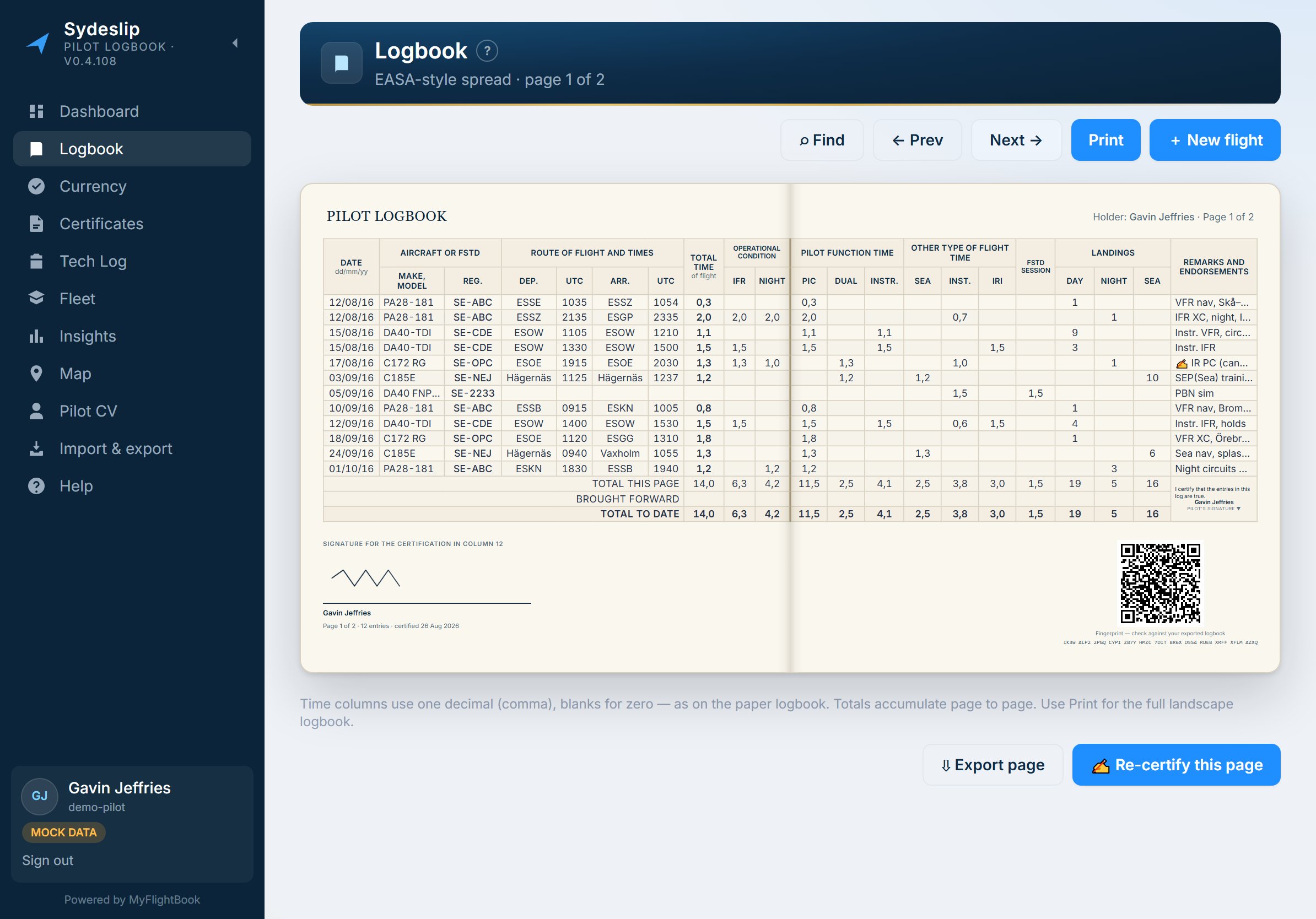
Printing on the iPad starts from the Share button too — Share, then Print. Safari adds its own header and footer to anything it prints and gives you no way to remove them, so an iPad printout carries a line of small print at the bottom. The page itself is unaffected; if you need a sheet without it, print the same page from a computer.
Keeping it up to date
It updates itself. When a new version has been published, closing Sydeslip and opening it again picks it up — there is no App Store step and nothing to reinstall.
What works without a signal
Pages you have already opened stay readable, and so do your device-held records — licences, defects, aircraft notes, certifications. What needs the network is anything that talks to MyFlightBook: fresh flights, currency, and saving a new entry. Sydeslip will tell you when it is showing you something it could not refresh.
On a computer
The simplest route is to open app.sydeslip.com in any modern browser. Everything works, including the logbook spread, printing and PDF export. Chrome and Edge give you the neatest print dialog; choose Shrink oversized pages if it offers you the choice.
In Chrome or Edge you can also install it as its own window — the install icon appears at the right of the address bar — which gets you the app without the browser furniture around it.
The desktop application
There is a desktop build that runs as a real application rather than in a browser. Its advantage is the PDF: it writes the file directly, at proper resolution, with a dialog asking which pages you want, instead of going through the browser's print-to-PDF.
A Windows Installer package, about 110 MB. It installs for your user only, so it never asks for administrator rights. There is no macOS or Linux build — on those, use app.sydeslip.com in a browser, which does everything except write PDFs directly.
What Windows will say, and why
Windows will warn you about this download. You will see a blue Windows protected your PC box from SmartScreen; running it anyway takes More info and then Run anyway.
That warning does not mean anything has been found wrong with the file. It means the installer is not code-signed — signing needs a certificate that costs a few hundred pounds a year, and Sydeslip is free and written by one person. Windows shows the same box for every unsigned installer, from a hobby project or otherwise. Being suspicious of it is the right instinct; here is what you can actually check instead.
Check the file against its published hash
Every release is published with a SHA-256 — a fingerprint of the exact bytes that were built. If the file you downloaded produces the same fingerprint, it is the file that was published and nothing has altered it in between. In PowerShell:
Get-FileHash .\Sydeslip-0.4.116.msi -Algorithm SHA256
It should print, for this release:
bdac57c0568ce5b6c6d354e44e27f0d03a5e2b2582ee195a9c24210cb99bb2ef
The same value is published beside the installer as Sydeslip-0.4.116.msi.sha256. If what you get does not match, delete the file and tell me at info@sydeslip.com.
Two smaller things in your favour: the installer is per-user, so it never asks for administrator rights, and it installs only under your own profile. And SmartScreen's warning eases as more people install a given release — an early download sees it, a later one may not.
Using it on more than one device
Your flights need no transfer at all. They live in MyFlightBook, so every device you sign in on sees the same logbook, and a flight you add on the iPad is on the computer as soon as it refreshes.
Everything Sydeslip keeps for itself does not travel. Licences and medical, aircraft photographs and notes, defects, corrected airport coordinates, endorsement signatures and page certifications are held on the device you entered them on — that is the point of them being yours — so a second install starts empty. Moving them is one file:
- Set one device up properly first. Sign in, add your licences and medical, fix any airport that sits in the wrong place, certify the pages you want certified. It is far less work to do this once and copy it than to do it twice.
- On that device, open Import & export and use Backup & restore. It writes a single dated pack file — everything above, in one place.
- Get the file to the other device however you normally move a file: AirDrop, a cloud folder, a memory stick, an email to yourself.
- On the second device, open Import & export and restore the pack. Your records appear as they were on the first one.
The pack is the same format on the iPad and on a computer, so it travels either way between them.
It is a copy, not a sync. Nothing keeps two devices in step afterwards — change a licence on the computer and the iPad will not know. If you keep working on both, treat one as the device of record and re-export from it when the other needs catching up. Restoring replaces what is on the device with what is in the pack, so restore an older pack over newer work and that work is gone.
Signing in
- Open Sydeslip and choose Sign in.
- You land on MyFlightBook's own page. Check the address bar says myflightbook.com before you type anything, as you would with any sign-in.
- Approve the access and you come back to Sydeslip with your logbook loaded.
A sign-in lasts a fortnight and renews itself while you keep using the app, so in practice you sign in once. If you ever see a screen saying the session has ended, signing in again is all it needs.
Removing it
On the iPad, press and hold the icon and delete it as you would any app. On a computer, close the tab or uninstall the browser app. Either way your flights are untouched in MyFlightBook — but the records Sydeslip keeps on the device go with it, so back those up first if you have licences, defects or certifications you want to keep. On the iPad that is Backup & restore on the Import & export page — one button writes a pack file, and restoring it into a fresh install brings everything back.