
What each page is for.
Most of Sydeslip explains itself — every page has a ? beside its title with the same words as the app's own Help page. This is the tour: what lives where, and the few things that are worth knowing before you need them.
The Logbook
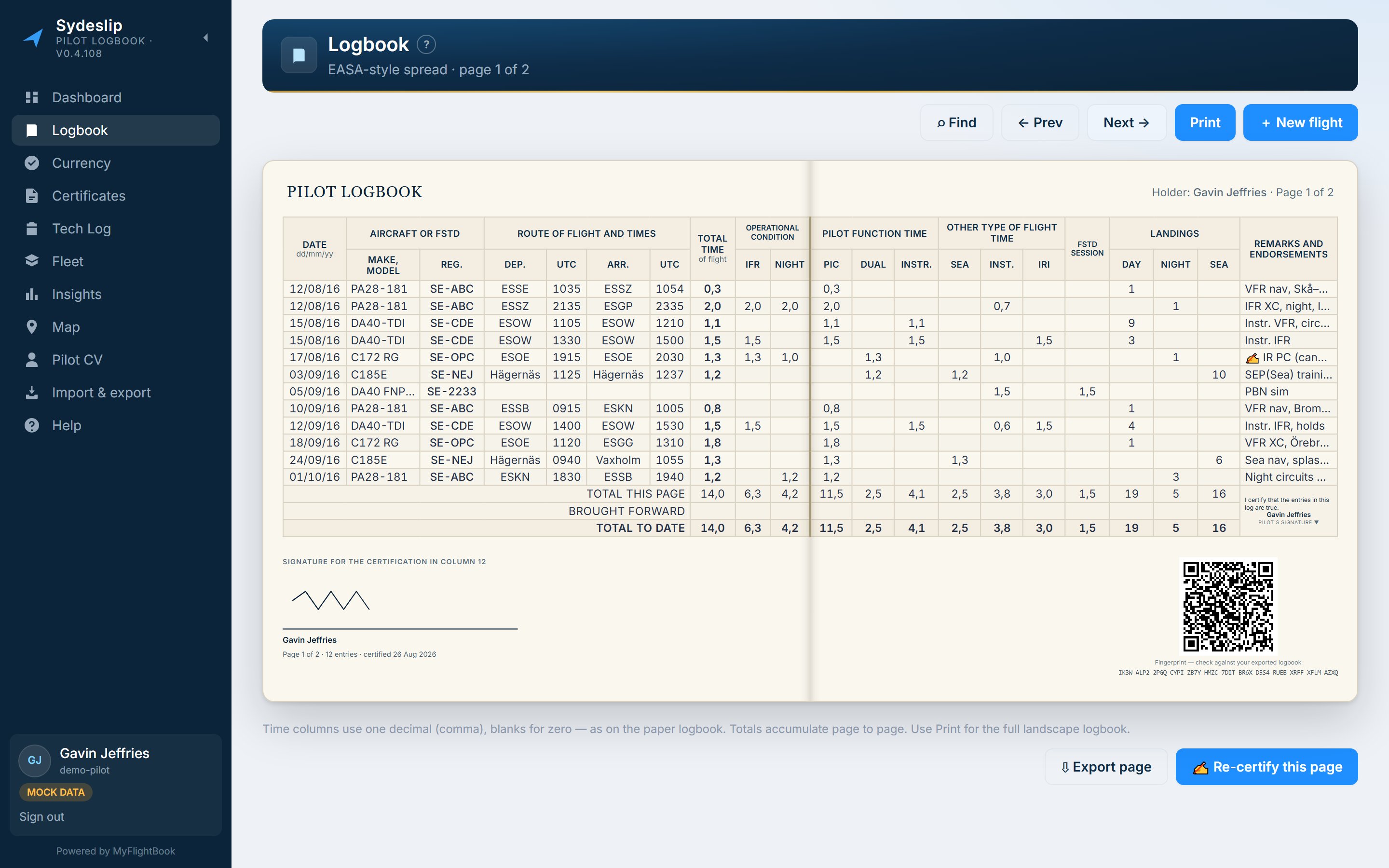
The heart of it. Your flights laid out as a two-page EASA-style spread: aircraft and route on the left, times and landings on the right, with page totals, totals brought forward and a running total along the bottom. Arrow buttons turn the page; the book opens with a flourish the first time you visit it each session.
The sheet scales to fit your window. It is fitted to both width and height, so it never overflows the bottom of the screen — which means a wider window does not necessarily give you a bigger sheet.
Adding and editing a flight
Add flight opens the entry dialog. The everyday fields are up front; More detail unfolds the rest — Hobbs and tach, fuel and oil, the name of the pilot in command, IFR time, passengers. Whether that section is open or closed makes no difference to what is saved.
Sydeslip will work out the night time for a flight from the sun's position along your track, and offer it with an Apply button. It never fills it in for you. The logbook is a legal record and your entry wins — the same principle applies everywhere in the app: it suggests, it reports, it does not quietly edit.
Certifying a page
EASA guidance asks for page totals to be certified by the pilot. Certify page takes your signature and stamps the page with a QR code and a short code below the grid.
The code is computed from the flights on that page. Anyone holding the printed sheet can re-check it, and what it tells them is precisely "unaltered since it was certified" — not that the entries are correct, and not that any authority has approved them. Editing a flight afterwards will correctly show the page as changed; re-certifying adds a new certification rather than replacing the old one, so the history stays visible.
The QR code contains the certification itself, not a web address. A printed page cannot be recalled, so it should not depend on a website still being there in ten years.
Printing and PDF
One button, top right. On the desktop application it says Save as PDF and asks which pages you want — all of them, the one you are on, or a range — then writes the file, named after you and the moment you saved it. Everywhere else it prints through the browser, and you choose Save as PDF in the print dialog.
The sheet prints in black and white, which is both crisper and kinder to a printer than grey text. Endorsements are printed as numbered footnotes underneath the grid rather than being cut off in the remarks column — a full endorsement never fits in a column that is a twentieth of the page.
Currency, and Certificates & Medical
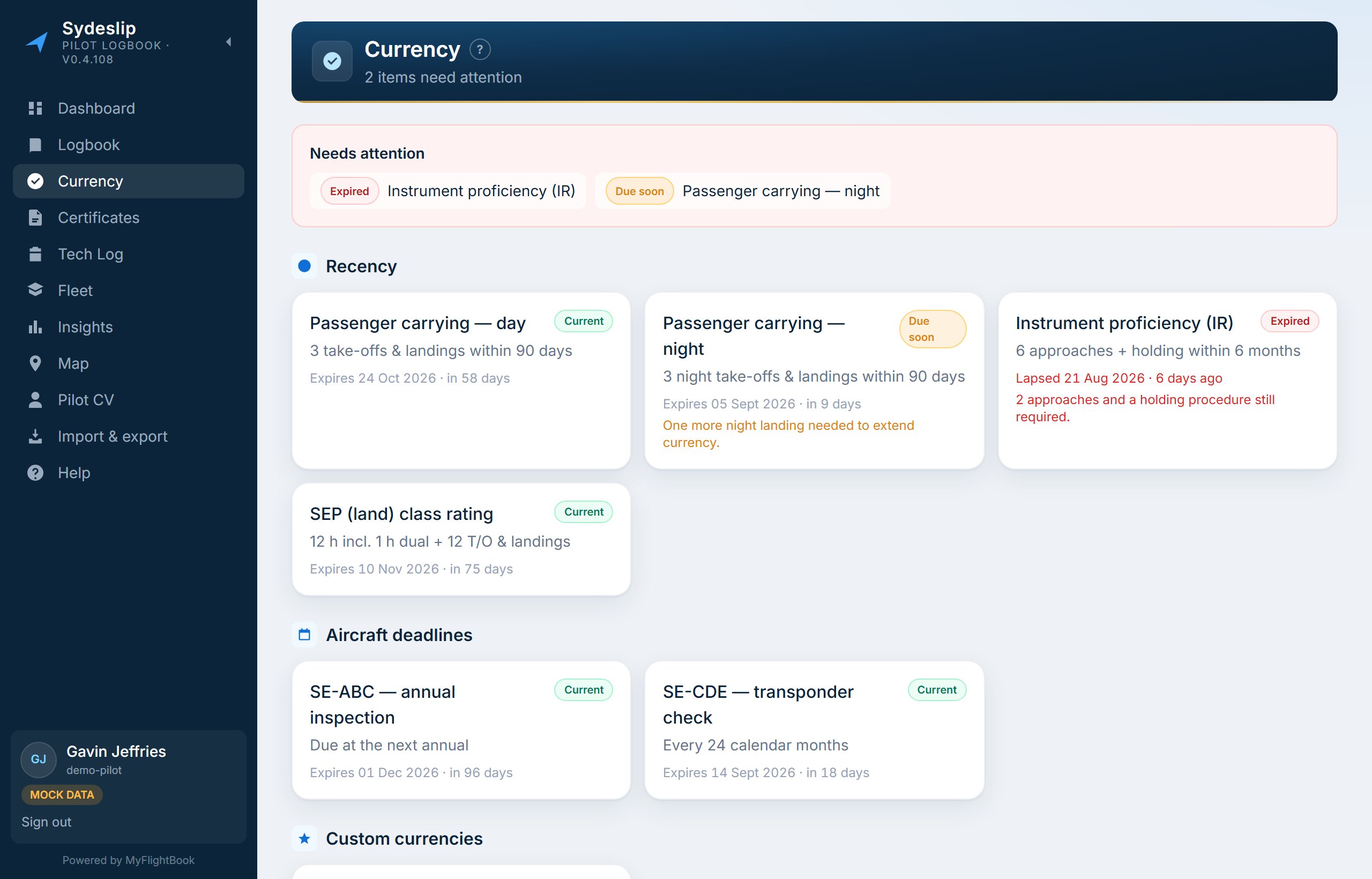
Currency shows what MyFlightBook computes: recent flight experience, custom rules you have set up there, and aircraft deadlines. Certificates holds your medical, flight review, licences and ratings.
Items that came from MyFlightBook are marked as such and are read-only here — change them at MyFlightBook. Your licences and ratings are the other way round: MyFlightBook has nowhere to keep them, so Sydeslip does, on your device.
When signed in to MyFlightBook you will see its own wording for an expiry rather than a countdown in days. That is deliberate. MyFlightBook sends the expiry as a sentence formatted for your account's country, and 9/12/2026 means two different months depending on where you live — so Sydeslip shows you exactly what MyFlightBook said instead of guessing and putting your medical three months out.
Tech Log and Fleet
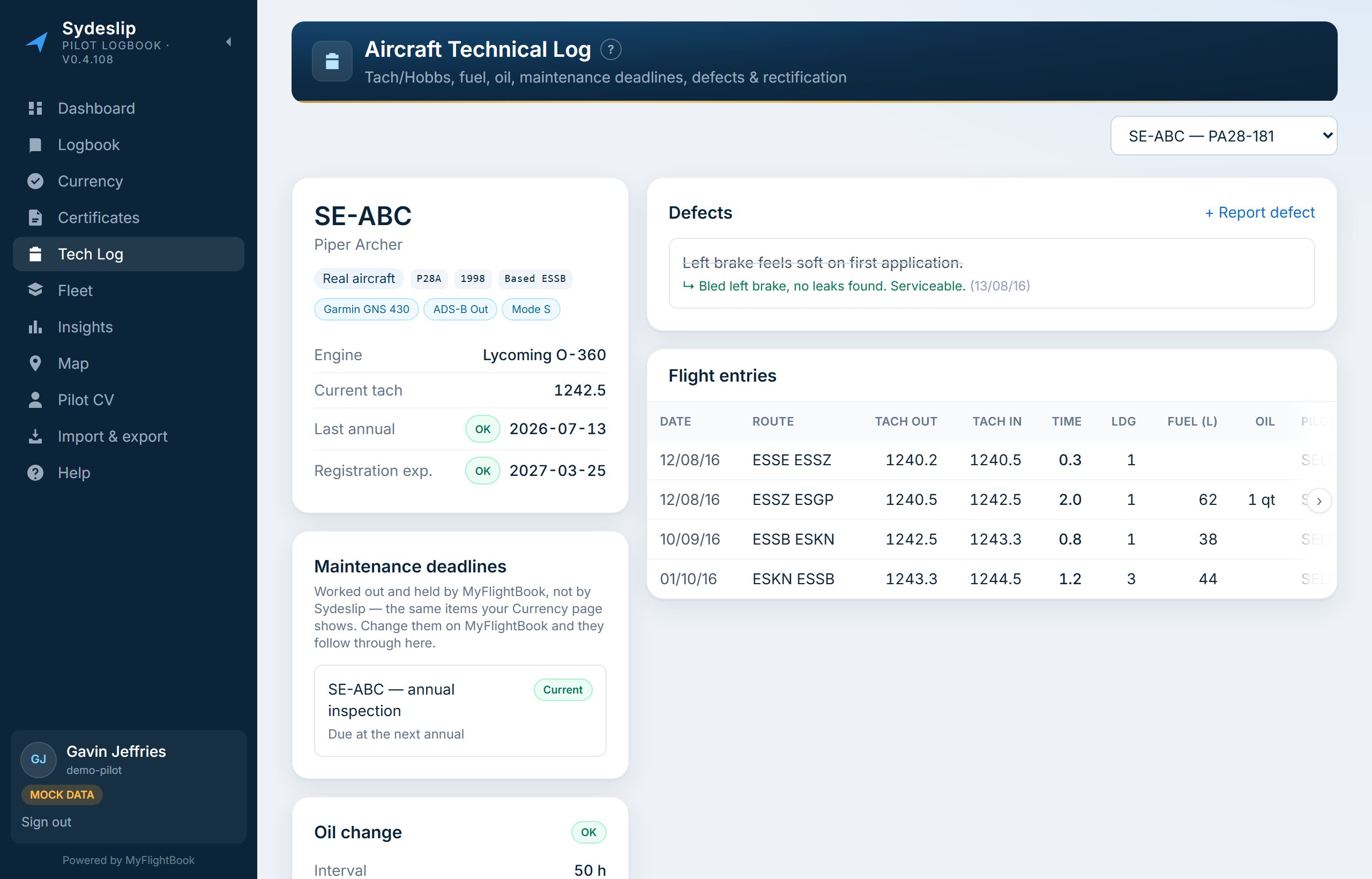
Fleet is your aircraft: photographs, notes, equipment, and hours flown. Tech Log is the maintenance side — hours and cycles, the deadlines MyFlightBook is tracking for that aircraft, and a defect list.
Defects are Sydeslip's own: MyFlightBook has no snag record at all, so raising, tracking and clearing a defect happens on your device. Maintenance deadlines are read from MyFlightBook and not duplicated, so they cannot drift out of step with the Currency page.
These two pages are hidden unless your access level is set to senior, on the Profile page. It is a preference about clutter, not a permission — set it to whatever suits how you use the app.
Insights and the Map
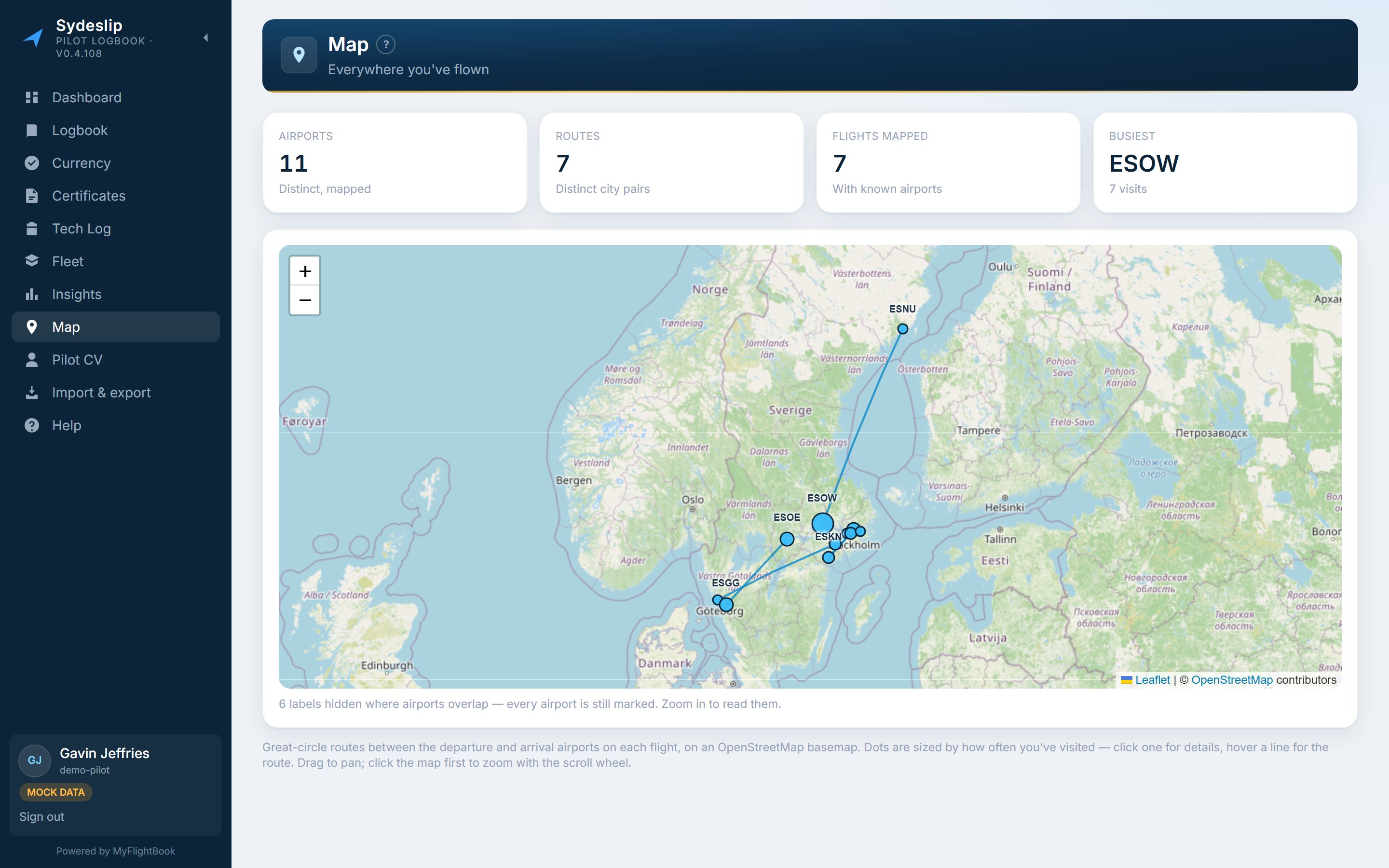
Insights is your flying in charts: hours by month, by type, by role. Map draws every route you have flown over an OpenStreetMap background, resolving airport codes against a dataset of about 59,000 of them — ICAO, IATA, GPS and local codes all work.
The Map leaves out simulator sessions and entries with no flight time — they are still in your logbook, they just are not places you have been — and it says on the page how many it left out. So if you count more airports in MyFlightBook than you see here, that is the difference, and you can see it rather than having to work it out.
If a place is in the wrong spot, or is somewhere with no code at all — a strip, a seaplane base — you can set its coordinates yourself on that page. Your coordinates take priority over the dataset from then on, so this corrects a wrong position as well as filling a gap.
Pilot CV
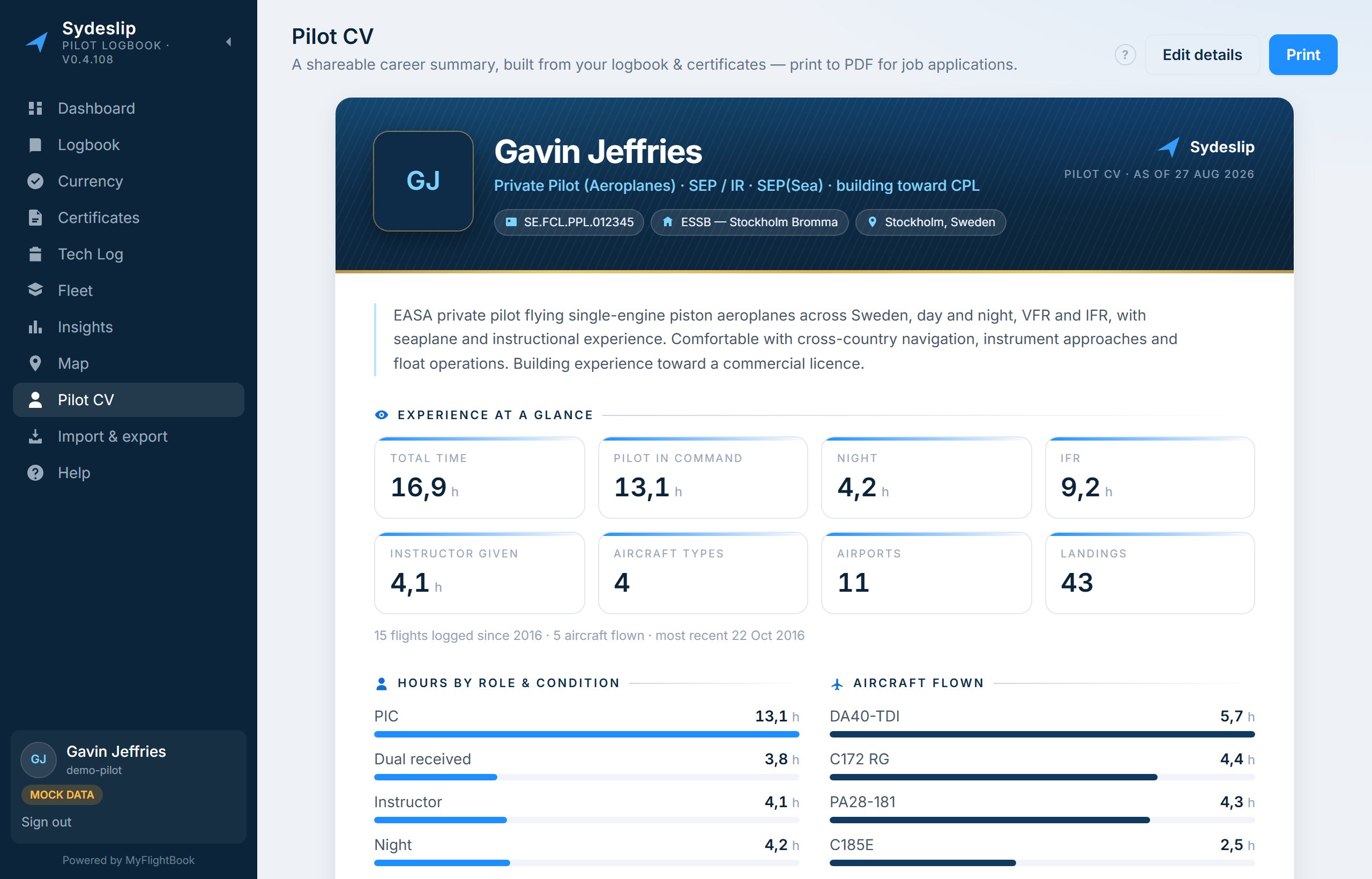
A single page summarising your flying for someone who has asked: totals by category and role, time on type, your licences and ratings, and your photograph. It saves as a PDF with the same button as the logbook.
Import & export
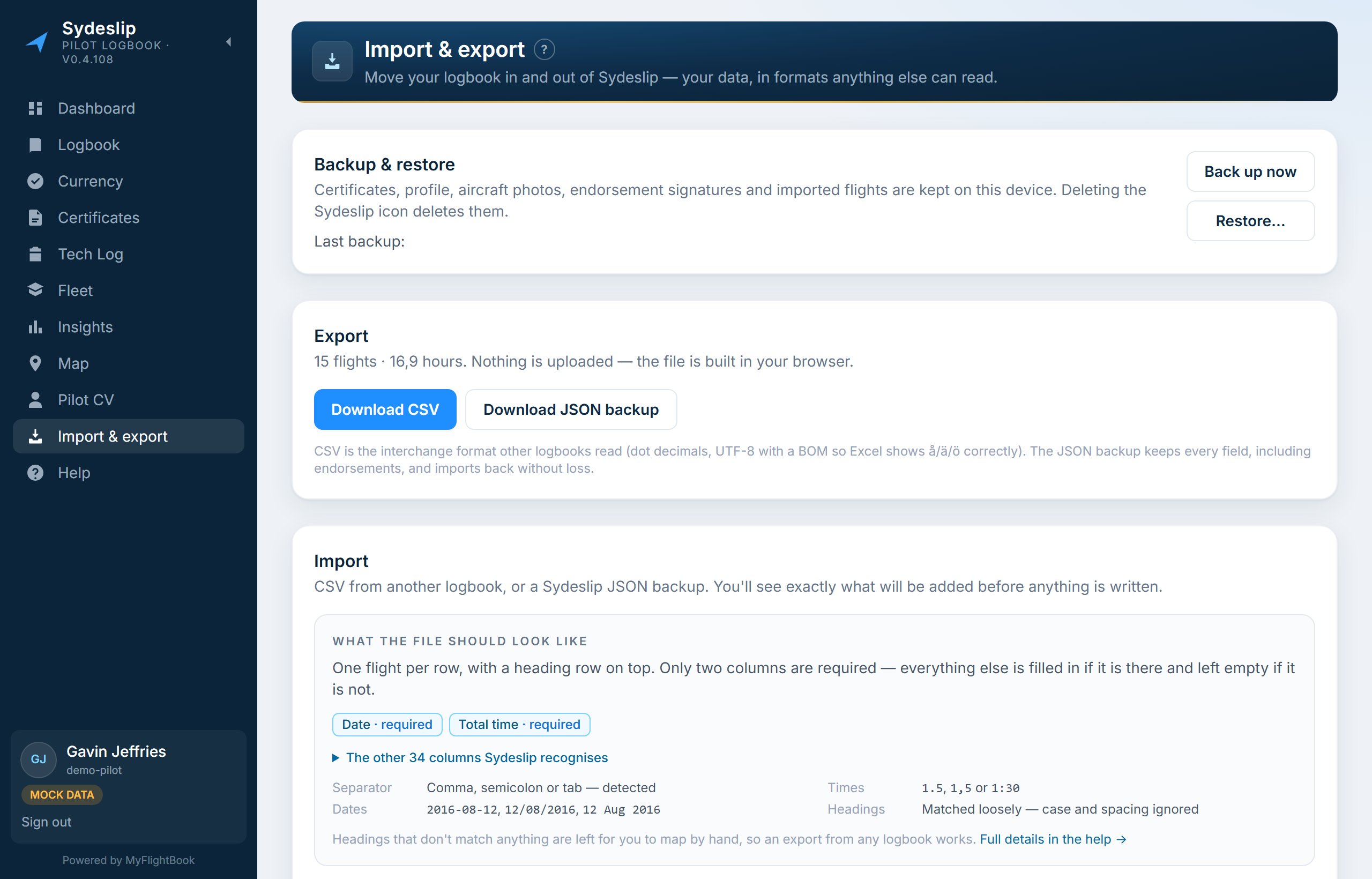
Import reads a CSV or JSON file — a spreadsheet, an export from another logbook, MyFlightBook's own export. It matches the columns for you, shows you what it read, and tells you what it could not read before anything is committed, and again afterwards. A value it cannot understand is left empty and named in the results rather than being guessed at.
Imported flights are written to MyFlightBook, as a batch. If the batch was wrong, Undo removes exactly the flights it created and nothing else.
Export writes your logbook back out as a CSV that Sydeslip can read again — every field it holds, round-tripped. Use it as a backup; a logbook that only exists in one place is not backed up.
Back up your MyFlightBook logbook before you start, and keep that copy. Export it from MyFlightBook and put it somewhere safe. Sydeslip has been tested against MyFlightBook and it writes to your real logbook — adding, editing and importing flights there — so a copy you hold yourself is the only thing that does not depend on either of us. Use Sydeslip at your own risk. Keeping your own backup of anything digital is good practice whatever software you use, and having one is your responsibility.
Backing up the rest
Your flights are safe in MyFlightBook. The things that only Sydeslip holds — licences, medical, aircraft photographs and notes, defects, corrected airport coordinates, endorsement signatures and page certifications — live on the device in front of you rather than upstream.
On the iPad they are in the browser's own storage, so Import & export carries a Backup & restore section: one button writes all of it to a single pack file, another reads a pack back in. On a computer running the desktop build they are ordinary files on your own disk, so they are covered by whatever already backs that up — the section is not shown there, because there is nothing it could do that your own backups do not.
Installing on a second device? Your flights come from MyFlightBook and need no transfer, but these records do not travel on their own — set one device up, export a pack from Import & export, and restore it on the other. The install page has the steps, including why it is a copy rather than a sync.
That storage belongs to the browser, and browsers do clear it — deleting the app, clearing site data, or switching to a different device or browser all leave those records behind. Take the backup before you do any of those things.
The audit
Sydeslip quietly checks your entries for things that cannot both be true: a leg overlapping another, a column adding up to more than the total time, a flight with no route, an entry that looks like a duplicate of one you already have, a signed page that has been edited since.
It reports and stops there — you make the correction. A checker that cried wolf would be worse than none, so the rules are deliberately few and each is either arithmetic or hedged in its own wording.
Endorsements and signatures
An instructor can sign an endorsement on your device, in person, next to you. There is no link to send, no account for them to make and nothing hosted — which is the point: it is a local attestation in a file you can edit, and the dialog says so plainly rather than implying more.
Sydeslip records what the entry said at the moment it was signed. Change the flight afterwards and the signature shows as no longer matching — that is the mechanism working, not a fault. If MyFlightBook itself holds an instructor's signature for a flight, that one is shown and always takes precedence.
If something looks wrong
Two things are worth trying before anything else. If the app shows errors on every page at once, sign out and sign back in — an expired sign-in does not always announce itself clearly. If you are looking at something stale on the iPad, close Sydeslip completely and reopen it, which is also how it picks up a new version.
Otherwise write to info@sydeslip.com and say what you were doing and what you saw.